


Blend Photos - Photo Blender
4.61.51K Reviews
App Specs
- Version
- 6.0.3
- Updated On
- License
- Free
- Downloads
- 10,000,000+
- Developer
- Maxlabs Photo Editor
- Categories
- Photography
- Platform
- Android
Screenshots
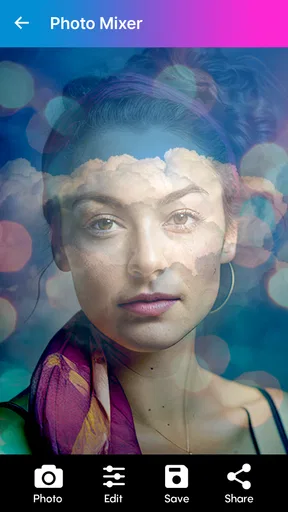
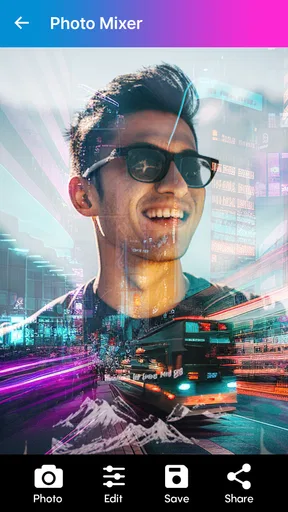
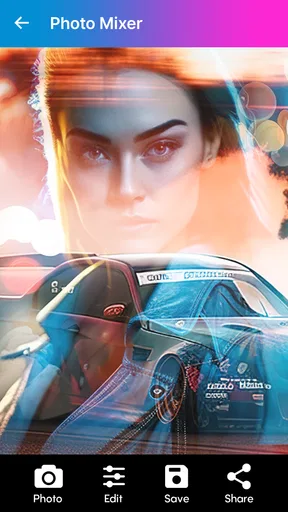
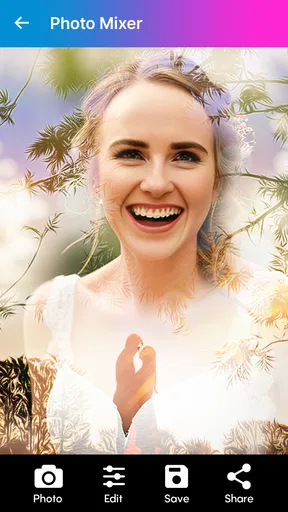
 Analysis by AppCompare
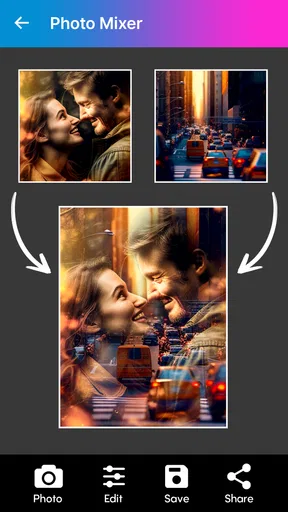
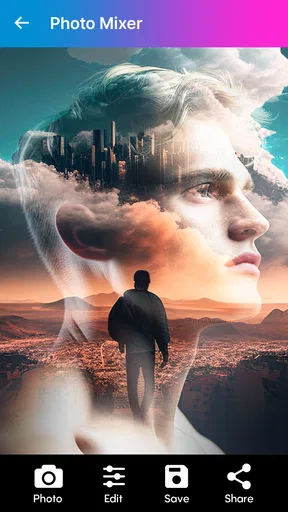
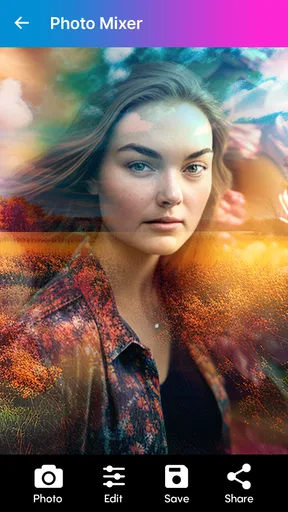
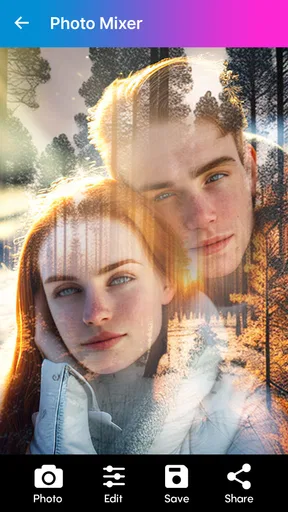
When I want two images to feel like parts of one idea rather than separate shots, a regular crop or filter usually isn’t enough. Blend Photos - Photo Blender is aimed at that specific job: combining pictures and shaping the result without turning the process into a full desktop-editing project. I find it most useful when I already have a visual concept in mind and want a quick way to try it on my phone.
That focus also helps set expectations. This is a photography app from Maxlabs Photo Editor, not an all-purpose replacement for a professional image editor. Its appeal is the accessible route from choosing pictures to making a composite, with extra adjustments available along the way. It is free to install, rated for Everyone, and offers in-app purchases ranging from $4.99 to $39.99 per item, so I’d treat it as an easy starting point and check purchase prompts before committing to anything paid.
Choosing photos that can work together
The first decision matters more than any effect: pick images with compatible light, color, and subject placement. For example, a portrait with open space on one side is easier to combine with a landscape or texture than a tightly framed face that fills the whole image. I’d make a small shortlist in the gallery before opening the editor, rather than repeatedly switching between candidate photos once I’m already working.
A practical everyday use is making a birthday or travel post from two pictures: a person in one frame and a place or moment from another. The blend can suggest a memory or mood without requiring a complicated collage layout. I’d keep the pair visually related—similar warmth, a shared color, or a clear difference between foreground and background—so the result feels intentional instead of busy.
Building the blend without losing the subject
The basic workflow is approachable: select two images, try a blending mode, and judge the preview before settling on the combination. The different modes are worth testing rather than treating the first one as the default. One may preserve the people and objects clearly, while another may make the overlap itself the point. I’d compare a few options using the same pair before changing the photos, because that makes it easier to see what the mode is actually doing.
After the initial combination, brightness, contrast, and saturation give you a way to bring the layers closer together. A useful order is to correct the overall light first, then adjust contrast, and leave saturation until last. If one photo is much brighter than the other, adding a strong filter can make the mismatch more obvious rather than fixing it. Small, deliberate changes tend to produce a cleaner result than pushing every slider for dramatic effect.
Overlays and filters can add atmosphere, but I’d use them as finishing touches, not as a substitute for choosing compatible images. A light texture may help unify a blend; a bold overlay can compete with the subjects and obscure the detail you wanted to keep. Text works best when it has a clear job—such as naming a place or marking an occasion—and enough contrast to remain readable over the image.
Worth Reading Before You Choose

EA SPORTS FC Mobile 26 Is a Bigger Football Game, but It Takes Time

Flipboard Shows What News Apps Must Do Beyond the Feed

Switching to Android Auto Means Rethinking Your Driving Routine

Google Calendar Makes a Crowded Week Easier to Manage

Ludo King Makes the Most of the Minutes Between Plans

Baby Panda World Brings Quick Play to Modern Phones, but Its Game Library Feels Busy
Making an image that is ready to share
Before saving or sharing a composition, I’d inspect the parts where the photos meet. Look for an accidental double edge, a face that has become hard to read, or a bright patch that pulls attention away from the intended subject. A quick preview at normal phone size is helpful too: details that look acceptable when zoomed in can become muddy on a small social post.
For a simple social graphic, the app’s text tools can be more convenient than exporting to another editor just to add a short caption. For a polished announcement or a design that needs precise typography and layout, though, I’d rather use a dedicated design app. Photo blending is the central task here; the extra text option is handy, but it doesn’t make this a full publishing or page-layout tool.
Who will get the most from it
I’d recommend this app to casual creators who enjoy experimenting with two-image composites, beginners who want a guided way to try photo effects, and anyone making informal social posts or personal keepsakes. Its tutorial guidance can help newcomers get moving, while the straightforward interface keeps the first attempt from feeling like a technical lesson. The app has a 4.7 average from around 80,000 ratings and over 10 million installs, which suggests that this kind of accessible editing has found a broad audience.
It is a less natural fit if your usual work depends on precise selections, complex layer masks, detailed retouching, or repeatable control over every element. In those cases, a more advanced editor gives you finer decisions, while a conventional collage maker is usually quicker if you simply want several intact photos in a grid. I see the blender as a middle ground: more expressive than a basic collage, but less exact than a full compositing workflow.
What to expect from regular use
The app was released on November 25, 2019, and its current version is 5.8.4, with Android 6.0 listed as the minimum operating system. I’d still judge the experience on the device you plan to use, especially if you work with large image files or keep many apps open. A smooth first edit doesn’t guarantee every complex pair will feel equally quick, so saving a sensible copy of your source photos before experimenting is a good habit.
One small workflow tip is to make a deliberate “clean” version before adding decorative effects. First get the two images balanced, then save or preserve that simpler direction if the app’s flow allows it, and only then explore overlays, filters, or text. That keeps the creative experiment from becoming a dead end: if a dramatic treatment stops working, you know the underlying blend was already sound and can return to a more restrained look.
Another trade-off is that blending asks for more visual judgement than applying a preset. You may need to try several modes and make small corrections before the two sources feel coherent. That flexibility is the point, but it also means the app is not always the fastest choice when you only need a standard crop, color correction, or a quick single-photo filter. For those routine edits, your phone’s built-in editor may be simpler.
Getting Started with Blend Photos - Photo Blender
First things first, downloading the app was a breeze. Available on both Android and iOS, you can find it easily on the app stores. Once installed, you’re greeted with a simple yet elegant interface that’s easy to navigate. No rocket science here, just straightforward options that make it accessible for everyone.
The main feature, as the name suggests, is to blend photos. You can select two images from your gallery and combine them into one stunning picture. The app uses a variety of blending modes to achieve different effects, making your images look professional with minimal effort.
Features That Stand Out
One of the things I love is the wide range of editing tools available. Not only can you blend photos, but you can also adjust brightness, contrast, and saturation. This allows you to fine-tune your creations until they’re just right.
The app also offers overlays and filters, giving your images that extra touch of magic. Whether you’re going for a dreamy look or something more dramatic, there’s a filter that fits the bill. Plus, the overlays can add textures like bokeh or light leaks, making your photos look like they came straight out of a magazine.
Another nifty feature is the ability to add text to your images. You can choose from a variety of fonts and colors, which is perfect if you’re looking to create memes or share inspirational quotes on social media.
Is It User-Friendly?
Absolutely! The app is designed with the user in mind. It doesn’t overwhelm you with too many options, which is great if you’re not a professional editor. The drag-and-drop functionality makes it super easy to blend images, and the preview feature lets you see changes in real-time.
One thing that really impressed me was the tutorials available within the app. They’re short and sweet, giving you the right amount of guidance to get started. If you’re a beginner, you’ll appreciate this extra hand-holding.
Performance and Reliability
Now, let’s talk about how well the app performs. I’ve had no issues with crashes or lags, which is often a concern with photo editing apps. The transitions between screens are smooth, and the edits are applied quickly. It’s a solid performer that gets the job done without any fuss.
The app also doesn’t hog storage space. It’s lightweight, which means it won’t slow down your phone. Plus, it’s optimized to save battery life, so you can edit on the go without worrying about your phone dying on you.
Working around the limits of a quick editor
When I’m making a blend for a specific occasion, I try to decide on the final destination before I start. A square social post, a phone wallpaper, and a picture sent in a chat each reward different framing. If the two source photos are cropped very differently, the composite may need more experimentation to keep the important details visible. Picking images with some breathing room around the subject makes that decision easier.
There is also a handoff to consider: the finished image may leave the editor for a social app, a message, or another design tool. I’d check the saved result in the place where it will actually be seen, rather than relying only on the editing preview. If a caption is important, keep it short and test its readability against both light and dark areas of the blend. A design that looks balanced in the editor can feel crowded once it sits beside other posts.
For a keepsake, I’d lean toward a subtle blend and preserve the original photos separately. That gives you room to revisit the idea later without feeling that the more stylized version has replaced the memory. For a playful meme or a deliberately surreal image, the opposite approach can work: let the mismatch show and use text to make the joke clear. The best result depends on whether the goal is a believable composite or an expressive one.
When another editing route makes more sense
If the task is to put several complete photos next to one another, a collage tool is likely the more direct choice; blending works by combining the images, not simply arranging them as separate panels. If you want exact control over which pixels from each photo remain visible, a layer-based editor is a better fit. And if your main need is correcting a single picture, the phone’s standard photo editor can avoid the extra steps of choosing a second image and testing blend modes.
That distinction is useful before installing anything: this app suits people who want to explore how two pictures interact, not people who need every photo task in one place. The tutorials and live preview lower the barrier, but they do not remove the creative choices. I’d expect a little trial and error, especially when the subjects overlap or the lighting differs sharply. That is normal for compositing, rather than a sign that every pair of photos will produce a strong result.
For Android users, the stated minimum is version 6.0, while iOS users can find the app on the platform’s store. The rating is Everyone, so it is positioned for a broad audience. The price to install is free, though in-app purchases are available; I’d explore the basic workflow first and decide whether any paid option matters to my own use instead of assuming I need to buy something to make a first blend.
A practical verdict after the full workflow
The strongest reason to try this editor is that it makes a specific creative idea approachable: bring two photos together, test how they interact, and refine the tone with familiar controls. I like that the workflow can begin with a simple pair and grow into a more stylized image through overlays, filters, and text. That combination suits casual projects better than opening a complex desktop tool for a one-off post.
Its weak point is the same narrow focus that makes it easy to understand. It is not the tool I’d choose for precise commercial composites, careful portrait retouching, or a fast batch of ordinary corrections. Results depend heavily on the source images and the time you’re willing to spend trying alternatives. If you enjoy that experimentation, the process can be satisfying; if you want a predictable one-tap result, a simpler filter or collage app will probably feel less demanding.
Final Thoughts
In conclusion, Blend Photos - Photo Blender is a fantastic app for anyone looking to get creative with their photos. It’s packed with features that are both powerful and easy to use. Whether you’re a seasoned pro or just starting out, this app has something for everyone.
If you’re looking to add a touch of magic to your photos, give this app a try. It’s a fun and engaging way to create stunning visuals that are sure to impress your friends and followers. So, what are you waiting for? Dive into the world of photo blending and unleash your creativity today!
Pros
- Easy-to-use interface for beginners.
- Wide range of blending effects available.
- Supports high-resolution images.
- Quick sharing options to social media.
- Offers a variety of editing tools.
Cons
- In-app ads can be distracting.
- Limited free version features.
- No offline functionality.
- Occasional app crashes reported.
- Requires frequent updates.
FAQs for Blend Photos - Photo Blender
What is Blend Photos - Photo Blender?
Blend Photos - Photo Blender is a creative app designed to help users combine two or more images seamlessly into one. It offers various blending modes and editing tools, allowing users to create stunning and artistic photo compositions. Ideal for both beginners and advanced users, the app provides an intuitive interface for easy navigation.
Is Blend Photos - Photo Blender free to use?
Blend Photos - Photo Blender offers a free version with basic features, but also includes in-app purchases for advanced tools and effects. Users can choose to upgrade to a premium version to unlock additional features, such as more blending modes and higher resolution exports, enhancing the overall user experience.
What features does Blend Photos - Photo Blender offer?
The app provides a wide range of features, including multiple blending modes, opacity adjustments, and layer management. Users can also access various filters and effects to enhance their creations. Additionally, it supports high-resolution exports and quick sharing options to social media platforms directly from the app.
Is Blend Photos - Photo Blender user-friendly for beginners?
Yes, Blend Photos - Photo Blender is designed with a user-friendly interface, making it accessible for beginners. The app includes easy-to-follow tutorials and guides to help users understand the blending process. Its intuitive design ensures that users can quickly learn to create professional-looking photo compositions.
Can I use Blend Photos - Photo Blender on both Android and iOS devices?
Blend Photos - Photo Blender is available for download on both Android and iOS platforms. It is optimized for a variety of devices, ensuring smooth performance and compatibility across different operating systems. Users can download it from the Google Play Store or Apple App Store depending on their device.


